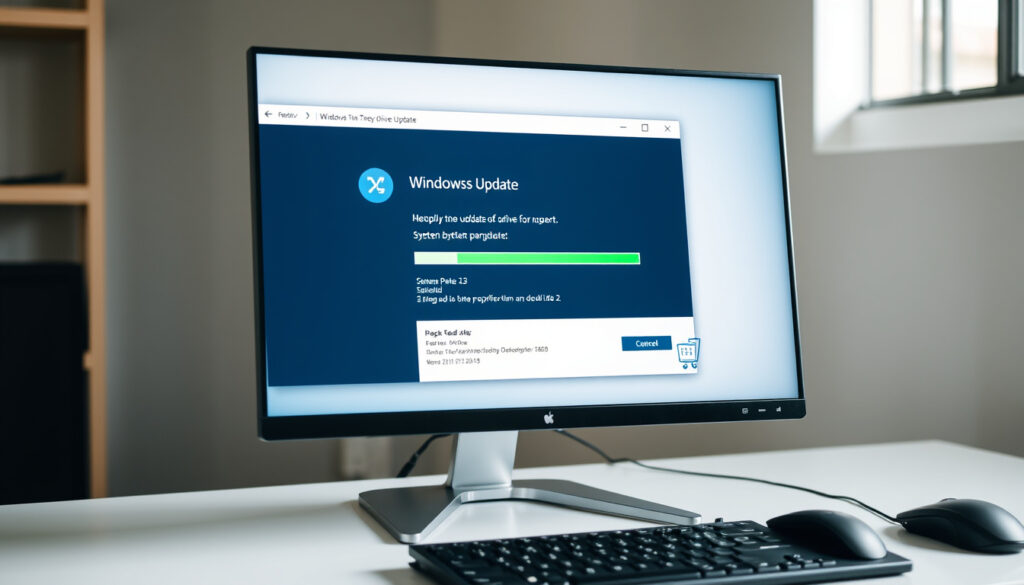
How to Update Drivers on Windows (2025 Guide)
You probably don’t think about drivers until something stops working — a printer that won’t print, a game that stutters, or a Wi-Fi adapter that drops the connection. Microsoft says Windows 11 can install recommended hardware drivers automatically through Windows Update, but knowing when to rely on that and when to take control yourself can save you both time and frustration – here’s how to update drivers on Windows using the methods Microsoft actually supports.
Windows Update handles driver updates by default: Microsoft ·
Over 90% of driver updates are delivered via Windows Update: Microsoft documentation ·
Device Manager allows manual per-device driver updates: Windows support
Quick snapshot
- Enabled by default (Microsoft Support)
- Provides recommended and optional updates (Windows Central)
- Covers most hardware vendors (SmartDeploy)
- Control over specific devices (Microsoft Support)
- Requires driver files from manufacturer (Windows Central)
- Best for outdated or problematic drivers (Driver Easy)
- Not recommended by Microsoft (Microsoft Support)
- May install outdated or malicious drivers (SmartDeploy)
- Device Manager warnings (yellow exclamation marks) (Driver Easy)
- Windows Update optional updates (Microsoft Support)
- Manufacturer utilities (GPU, chipset) (Windows Central)
Five key facts about how Windows handles driver updates:
| Fact | Detail |
|---|---|
| Default Windows Update driver setting | Automatic (includes driver updates) (Microsoft Support) |
| Number of driver updates delivered monthly via Windows Update | Varies; often 10–50 per device (SmartDeploy) |
| Devices with dedicated driver updates | Graphics cards, network adapters, sound cards, chipset (Windows Central) |
| Microsoft’s official stance on third-party tools | Advises against using them (Microsoft Support) |
| Common driver update frequency | Every 1–3 months for major components (Driver Easy) |
| Automatic driver installation via Windows Update | Enabled by default on Windows 10 and 11 (Microsoft Support) |
How do I update all my drivers?
How to update all drivers at once with command?
- Use pnputil from an elevated Command Prompt:
pnputil /add-driver *.inf /subdirsto install all driver packages in a folder (SmartDeploy). - Windows Update itself can update multiple drivers in one go — navigate to Settings > Windows Update > Advanced options > Optional updates and select all driver updates (Microsoft Support).
The catch: command-line bulk updates require you to have the driver .inf files already downloaded from manufacturers. For most users, Windows Update’s optional-drivers page is the simpler bulk method.
How to update drivers on a laptop?
- Laptop hardware is often vendor-specific. Start with Windows Update — it delivers drivers for Wi-Fi, Bluetooth, touchpad, and chipset from the laptop maker (Windows Central).
- For graphics (Intel, NVIDIA, AMD) and audio, visit the laptop manufacturer’s support site (e.g., Dell, Lenovo, HP) — they often supply custom-tuned drivers.
How to update NVIDIA drivers on Windows 10?
- Two official paths: Windows Update (offers validated NVIDIA drivers) or NVIDIA GeForce Experience (direct from NVIDIA).
- GeForce Experience checks for the latest Game Ready or Studio drivers and downloads them automatically (Windows Central).
- Manual download: grab the driver from NVIDIA’s driver page, then use Device Manager > Update driver > Browse my computer.
Why this matters: NVIDIA drivers are updated frequently (sometimes monthly) for game performance. Relying solely on Windows Update may leave you a version behind.
Does your PC automatically update drivers?
How to get recommended drivers automatically?
Windows 10 and 11 both have automatic driver updates enabled by default. To check: Settings > Windows Update > Advanced options — under “Update drivers automatically,” ensure it’s turned on (Microsoft Support).
Windows 10 update drivers automatically
Windows 10 automatically downloads driver updates through Windows Update. You can see pending driver updates under Optional updates — but critical drivers are installed without user intervention (SmartDeploy).
Windows 11 update drivers automatically
Same behavior as Windows 10. Microsoft says Windows 11 can install recommended hardware drivers automatically through Windows Update. Advanced users can pause updates for up to 5 weeks under Pause updates in Windows Update settings (Windows Central).
The pattern: automatic updates cover the vast majority of devices, but optional updates are where you’ll find newer or alternative drivers.
How do I manually update a driver?
How to update drivers through Device Manager?
- Press Win + X and select Device Manager (or press Win + R, type
devmgmt.msc) (GeeksforGeeks). - Expand the category for the device you want to update.
- Right-click the device and select Update driver (Microsoft Support).
- Choose Search automatically for updated driver software — Windows will search online and on your PC.
- If you have a downloaded driver file, choose Browse my computer for drivers and navigate to the folder containing the
.inffile. Make sure Include subfolders is checked (Windows Central).
How to update drivers in Windows 7?
- Windows 7 also has Device Manager with the same right-click > Update driver flow. However, Windows 7 no longer receives security updates, so driver updates must come from manufacturers.
- Check the manufacturer’s support site for Windows 7 compatible drivers. NVIDIA, for example, still provides legacy drivers for Windows 7.
How to update drivers in Windows 11?
- Identical to Windows 10. The Device Manager path is unchanged. The optional updates page is at Settings > Windows Update > Advanced options > Optional updates.
- Windows 11 also offers a Driver update section under Bluetooth & devices for some peripheral firmware.
The trade-off: manual updates give you control but require you to know the exact hardware model and download the right driver. Automatic updates are safer for most users.
How to know if PC drivers need updating?
Check for yellow exclamation marks in Device Manager
Open Device Manager and look for a yellow triangle with an exclamation mark — that indicates a driver problem (missing, outdated, or incompatible). You can right-click and choose Update driver to try to fix it (Driver Easy).
Look for optional driver updates in Windows Update
Go to Settings > Windows Update > Advanced options > Optional updates. If any driver updates are listed, they are available but not automatically installed. This is where Microsoft places newer drivers that aren’t critical (SmartDeploy).
Use device manufacturer support tools
- NVIDIA GeForce Experience checks for GPU driver updates.
- Intel Driver & Support Assistant scans for Intel chipset, graphics, and wireless drivers.
- AMD Software: Adrenalin Edition provides driver update notifications for Radeon users.
- For laptops, OEM tools like Dell Command Update or Lenovo Vantage offer driver scanning.
The implication: if you’re not experiencing issues, you likely don’t need to update every driver. Focus on GPU, network, and chipset drivers for performance and security.
How do I force a driver to update?
Force driver update via Device Manager and selecting specific driver
- Open Device Manager and right-click the device.
- Select Update driver > Browse my computer for drivers > Let me pick from a list of available drivers on my computer.
- Choose the driver you want from the list — Windows will install it even if it’s older than the current one (as long as it’s compatible).
Use pnputil /add-driver to install driver forcefully
In an elevated Command Prompt, run pnputil /add-driver "C:\path\to\driver.inf". This installs the driver package even if it’s older than the currently installed version (SmartDeploy).
Override driver selection using Hardware IDs
- Find the device’s Hardware ID in Device Manager (Properties > Details > Hardware Ids).
- Download a driver that matches the Hardware ID and install it manually through Device Manager.
- This method bypasses Windows’ compatibility checks and can force a driver onto a device that Windows thinks has the best driver already.
For most users, Windows Update handles drivers safely. Force methods are best reserved for troubleshooting specific hardware that’s misbehaving.
Confirmed facts
- Windows Update includes driver updates in optional updates (Microsoft Support)
- Device Manager can manually update drivers (Microsoft Support)
- Forcing a driver update is possible by uninstalling the device first (SmartDeploy)
- Automatic driver updates can be turned off in Windows Update settings (Windows Central)
What’s unclear
- Whether all hardware manufacturers provide drivers through Windows Update
- Exact threshold for when Windows considers a driver “compatible”
- Effectiveness of third-party driver updaters in avoiding conflicts
- Some third-party driver updaters are legitimate but use at own risk
“Windows Update automatically downloads and installs driver updates for devices you choose to update.”
— Microsoft Support
“I always use Windows Update first, only go to manufacturer if something doesn’t work.”
— Reddit user comment
“Check Windows Update for drivers, especially optional updates, as that’s where Microsoft puts them.”
For Windows users, the choice between automatic and manual driver updates is a balance between convenience and control. Automatic updates via Windows Update are safe, quiet, and cover most hardware — but when a specific device gives trouble, knowing how to manually update or force a driver can save the day. The smartest approach: let Windows Update handle the routine, and keep manufacturer tools in your back pocket for the outliers.
ockelcomputers.com, techcommunity.microsoft.com, youtube.com, youtube.com, youtube.com, board.eclipse.cx
For a more detailed walkthrough, refer to this complete guide to updating drivers that covers both built-in and manual methods.
Frequently asked questions
Is it safe to update drivers?
Yes, updating drivers from official sources (Windows Update or manufacturer sites) is safe. Always avoid third-party download sites that bundle adware.
How often should I update drivers?
For most components, every 1–3 months is sufficient. Graphics drivers may need updates more often for new game releases. Windows Update delivers critical driver fixes automatically.
What happens if I don’t update drivers?
You may experience compatibility issues, reduced performance, or security vulnerabilities. Outdated drivers can cause crashes, especially for graphics and network hardware.
Can I roll back a driver update?
Yes. In Device Manager, right-click the device, go to Properties > Driver > Roll Back Driver. This option is available only if the previous driver is still stored on your system.
Do I need to update every driver?
No. Focus on critical drivers: graphics, network, chipset, and storage. Peripheral drivers (mouse, keyboard) rarely need manual updates unless they’re malfunctioning.
What is a driver installer package?
It’s a file (often a .exe or .inf) provided by the hardware manufacturer that contains the software needed for Windows to communicate with the device. Some packages include additional utilities.
How to find driver version in Windows?
Open Device Manager, right-click the device, select Properties > Driver tab. The Driver Version, Date, and Provider are listed there. You can also use wmic sysdriver list brief in Command Prompt.
More related posts
 Liquor Shop Near Me in Ireland: Off Licence Guide & Rules
 Manawatu Standard News Obituaries: How to Find Them Online
 What Is Recovery Mode on Android & iPhone? Explained
 How to Delete Search History: iPhone, Android, Chrome, Google
 Why Does Trump Want Greenland? National Security & Rare Earths (2026)
 Tides Auckland North Shore – Today, Tomorrow & Beach Guide
 ANZ Loan Calculator NZ: Free Mortgage & Personal Loan Tool
 Road Accidents Today Christchurch: Live Alerts and Closures