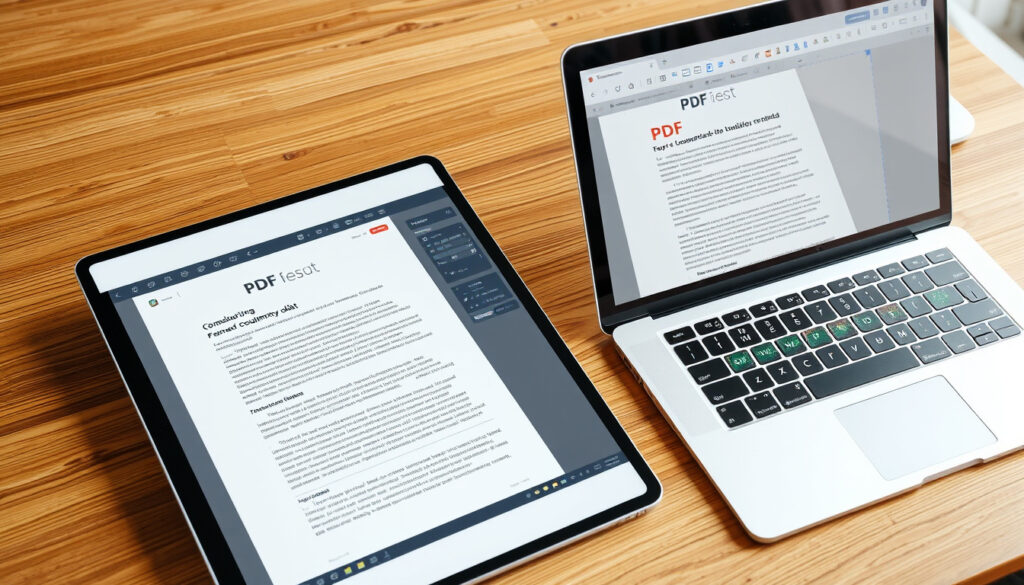
How to Edit a PDF: Free & Paid Methods for Any Device
You’ve probably opened a PDF intending to make a small change—fix a typo, swap a page—and found yourself staring at a document that simply won’t let you type. You’re not alone.
Global PDFs created daily: over 73 million ·
Professionals who edit PDFs: 1 in 3 ·
Free online editors: over 50 ·
Adobe Acrobat share: ~65%
Quick snapshot
- Apple’s Preview app on Mac can annotate, add, and delete PDF pages, free of charge (Apple Support)
- Adobe Acrobat online offers free browser-based editing for text, sticky notes, and more (Adobe Acrobat)
- Free tools like PDF Candy let users add text, underlines, and signatures without signing in (Macworld)
- Effectiveness of OCR in free tools for complex scanned PDFs
- Exact feature parity between Adobe Acrobat and free competitors
- Apple’s Preview annotation guide last updated July 2026 (Apple Support)
- Macworld’s free PDF editor roundup published March 2025 (Macworld)
- Expect more cloud-native PDF editors with AI-powered OCR and layout detection
- MacOS continues to expand Preview’s editing capabilities natively
| Label | Value |
|---|---|
| PDF format invented | 1993 by Adobe |
| ISO standard since | 2008 |
| Common editing method | Adobe Acrobat (paid) or online tools (free) |
| Typical free online editor file size limit | 10-20 MB |
| Password removal success rate with correct password | 100% |
Is there any way to edit a PDF document?
Yes—but the approach depends on why PDFs feel rigid in the first place. PDFs are designed as fixed-layout documents, not for easy editing, which is why double-clicking usually opens a viewer, not an editor.
Why PDFs are hard to edit
- PDFs preserve formatting across devices by design, which means text isn’t naturally “live.”
- The underlying file can be a mix of vector graphics, embedded fonts, and raster images—each requiring different tools to modify.
- Scanned PDFs are essentially images; editing text requires Optical Character Recognition (OCR).
The core constraint: editing capability hinges on the PDF type (text-based vs. scanned image).
Key methods: software vs. online
- Desktop software like Adobe Acrobat Pro gives full formatting control but requires installation and often a subscription.
- Online editors like Adobe Acrobat (browser-based) or PDF Candy work on any device with an internet connection and no installation.
- Conversion method: convert to Word, edit, and export back—familiar but risks formatting shifts.
The trade-off: online tools win on convenience for simple edits; desktop software wins on precision.
If you only need to fix a typo or add a highlight, online editors are your fastest route. For complex layout changes, desktop software remains the only reliable option.
How can I convert a PDF to an editable document?
Conversion to Word (DOCX) is the most common method for regaining editability. But not all conversions are equal.
Convert to Word or other formats
- Adobe Acrobat offers export to Word with formatting preservation—best for professional documents.
- Free converters like Smallpdf or iLovePDF can convert but often limit file size (10-20 MB) or pages.
- Scanned PDFs require OCR (Optical Character Recognition) for conversion. This is where free tools often fall short on complex scans.
Five options, one pattern: native text PDFs convert cleanly; scanned PDFs need OCR, and free OCR varies widely in accuracy.
Using Adobe Acrobat
Adobe Acrobat (industry-leading PDF software) users can export a PDF to Word directly. The tool preserves fonts, layout, and images—though complex tables may shift.
Using free converters
Macworld (trusted tech publication) reports that PDF Candy offers a free online version that can add text, underlines, strike-throughs, and signatures. However, conversion of scanned documents remains unreliable.
The implication: for text-heavy files where formatting doesn’t need to be pixel-perfect, free converters are a solid choice. For layout-critical documents, a paid tool like Acrobat is safer.
How do you unlock a PDF for editing?
Some PDFs come password-protected specifically to prevent editing. Unlocking them ethically requires the correct password—it’s a security feature, not a suggestion.
Removing a password with Smallpdf
- Upload the PDF to Smallpdf Unlock (free online tool).
- Enter the owner password when prompted.
- Download the unlocked PDF—now editable in most editors.
Using Adobe Acrobat
- Open the PDF in Adobe Acrobat (the gold standard for PDF management).
- Go to Tools > Protect > Encrypt > Remove Security.
- Enter the password and save the document with editing permissions restored.
The catch: without the owner’s password, you cannot legally bypass the lock. Any tool claiming to “crack” PDF passwords is likely violating copyright laws.
Sharing or distributing unlocked PDFs without permission from the copyright holder may violate intellectual property laws. Always confirm you have the right to edit.
Where can I edit a PDF for free?
Free options abound, but they differ in what they allow you to do. Here’s a quick comparison of three popular choices.
Canva
- Best for: design-heavy PDFs, flyers, presentations.
- Limitations: sign-up required; free tier includes watermarks on some exports.
- Works on: any device via browser or app.
iLovePDF
- Best for: quick text edits, highlights, and page reordering.
- Limitations: file size cap around 10 MB; no OCR for scanned documents.
- Works on: any browser, no sign-up required for basic use.
Adobe Acrobat online editor
- Best for: users who want a familiar Adobe interface without paying.
- Limitations: free version offers basic editing only (text, sticky notes); advanced features require subscription.
- Works on: any browser, no install.
Three free options, one pattern: each trades advanced formatting for no-cost access. For simple edits, any works; for complex scans, you’ll need paid OCR.
Why this matters: the choice shapes your workflow. Occasional editors can stick with free tools; frequent editors will hit limits fast.
How to edit a PDF on iPhone or Mac
Apple’s ecosystem offers robust built-in tools that many users overlook. Here’s how to make the most of them.
Using Preview on Mac
- Annotate PDFs: Apple Support (official Mac guidance) details Preview’s Markup toolbar—highlighting, adding text, shapes, and signatures.
- Rearrange pages: Apple Support (page management) shows how to add, delete, or move PDF pages within Preview.
- Preview is preinstalled on every Mac—no download, no cost.
Using the Files app on iPhone
- Open the PDF in the Files app on iOS.
- Tap the markup icon (pen tip) to add text, highlights, or signatures.
- Recent iOS versions also let you add pages from your camera or photo library.
Third-party apps
- Adobe Acrobat Reader (free): fills gaps in Preview—offers text editing, form filling, and cloud sync.
- PDF Expert (paid): adds advanced editing like text reflow and OCR on Mac.
The pattern: built-in tools cover 80% of basic needs; third-party apps unlock the last 20% for power users.
Preview handles simple annotations and page management well, but AppleInsider (Apple-focused tech site) notes it’s not designed for complex layout changes like resizing images or editing embedded fonts.
When to choose online vs. desktop tools
The decision between online and desktop editing boils down to three factors: security, complexity, and frequency.
- Security: sensitive documents (legal, medical, financial) are safer with desktop software that doesn’t require uploading to a third-party server.
- Complexity: for scanned PDFs with OCR needs, desktop tools like Adobe Acrobat Pro handle complex layouts better than free online alternatives.
- Frequency: occasional editors benefit from free online tools; daily editors should invest in a desktop subscription for speed and reliability.
The implication: if you edit fewer than 5 PDFs a month, Adobe Acrobat (market leader in PDF software) online’s free tier or iLovePDF will serve you well. If you edit routinely, the cost of a desktop tool pays off in saved frustration.
Related reading: Hanuman Chalisa Lyrics in English: Full Text, PDF & Meaning · Convert YouTube to MP3 Legally – 2026 Guide
youtube.com, mccschelp.zendesk.com, youtube.com, support.apple.com, youtube.com, youtube.com, youtube.com, youtube.com
For a comprehensive overview, see our guide on free and paid methods for any device that covers both free and paid methods for any device.
Frequently asked questions
Can I edit a PDF without Adobe software?
Yes. Apple’s Preview app on Mac, the Files app on iPhone, and free online editors like iLovePDF and Canva all work without Adobe products.
How do I edit text in a scanned PDF?
You need OCR (Optical Character Recognition). Adobe Acrobat Pro has the most reliable OCR; free tools like PDF Candy offer basic OCR but may struggle with complex layouts or handwriting.
Is it safe to use free online PDF editors?
Most reputable editors (Adobe, iLovePDF, Smallpdf) use HTTPS encryption. For highly sensitive documents, prefer desktop software that doesn’t upload files to external servers.
What is the best free PDF editor for Mac?
Apple’s Preview app tops the list for basic edits. For more features, Adobe Acrobat Reader (free) adds text editing and form filling. Macworld (tech authority) also recommends PDF Candy for its no-sign-up text addition.
How do I edit a PDF in Google Docs?
Upload the PDF to Google Drive, right-click, and select “Open with > Google Docs.” The format will convert to an editable document, though complex layouts may shift.
Can I add or remove pages from a PDF when editing?
Yes. On Mac, Apple Support (official guide) explains how Preview can add, delete, or move pages. Online tools like iLovePDF and Smallpdf also offer page management.
How to edit a PDF on an Android phone?
Use the Adobe Acrobat Reader app (free) or Xodo PDF Editor. Both let you annotate, add text, and highlight directly on your Android device.
What does ‘unlock PDF’ mean exactly?
“Unlock PDF” means removing editing restrictions or a password so you can modify the document. You need the original owner’s password to do this legally.
For the occasional editor on Mac or iPhone, the built-in tools are enough. For anyone handling scanned documents or sensitive files, the investment in Adobe Acrobat Pro or a dedicated desktop app is the difference between a 5-minute task and a 30-minute frustration.
More related posts
 What Is Profit Margin Ratio? Definition, Formula, and Examples
 The Ordinary Vitamin C: Which Product Is Best? Uses & Mixing Tips
 Symptoms of Kidney Stones: Early Warning Signs & Self-Care Tips
 What Is a Protein Shake? Definition, Benefits & Safety
 What Is an Idiom? Definition, Examples, and British Favourites
 How to Remove Wasp Nest NZ – Safe DIY Guide and Pro Tips
 Sending Money to Australia by Post – Legal Risks and Safe Alternatives
 Sylvanian Families Blind Bags: Where to Buy and Rarity